
Ever feel like you’re stuck in the digital slow lane? Constantly reaching for your mouse, clicking through menus, and wasting precious seconds? You’re not alone. I remember the frustration – the endless clicking, the eye strain, the feeling that there *had* to be a better way to get things done. And there is. The secret weapon? Keyboard shortcuts.
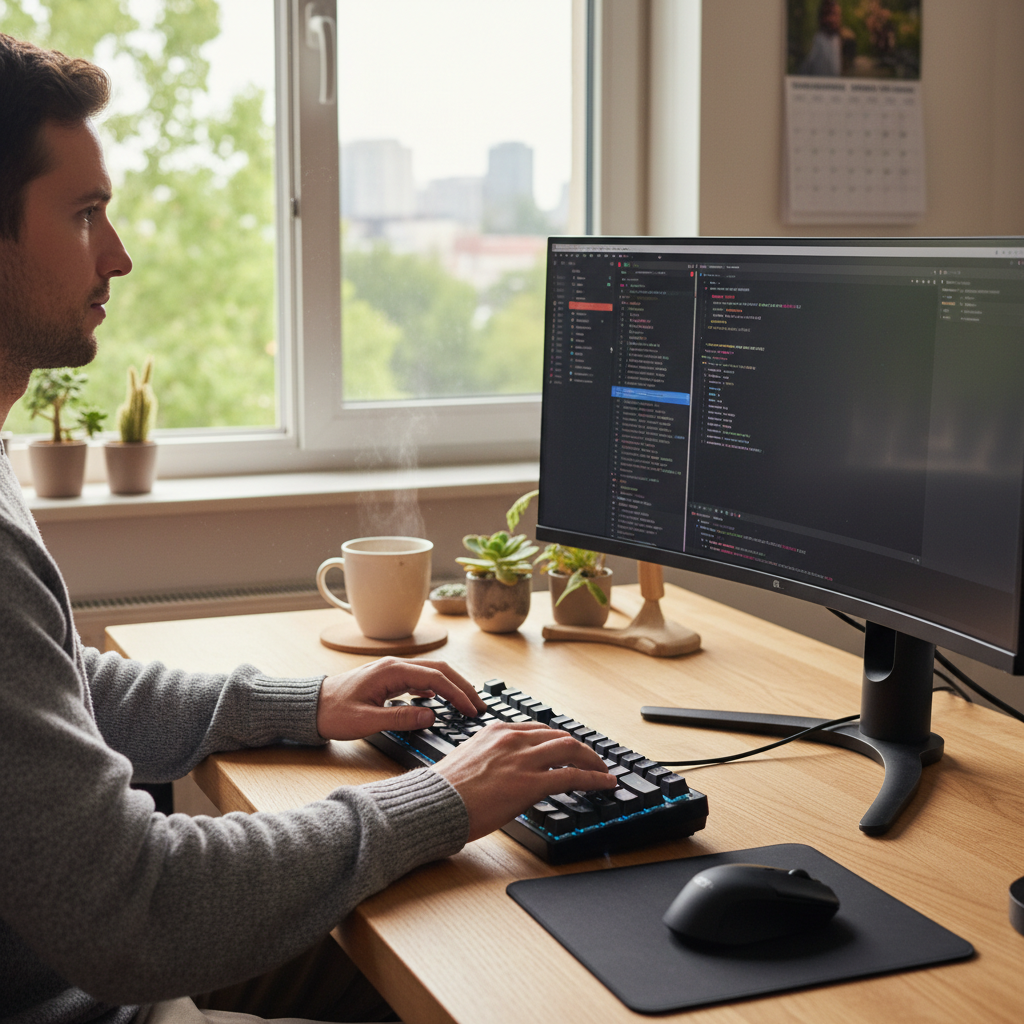 For years, I stubbornly relied on my mouse. I thought keyboard shortcuts were for “techies” or people with too much time on their hands. Boy, was I wrong. Once I started integrating them into my workflow, my productivity skyrocketed. Tasks that used to take minutes now took seconds. What used to feel like a sluggish trudge through my work became a swift, efficient flow. Today, I want to guide you through the process of transforming yourself from a mouse-dependent user to a keyboard shortcut ninja.
Why Keyboard Shortcuts Matter (And Why You Should Care)
Let’s be honest, we’re all busy. Time is a precious commodity. Every click, every menu navigation, is a tiny theft from your day. Keyboard shortcuts are your secret weapon for reclaiming that time. But it’s not just about speed; it’s about focus. Constantly switching between your keyboard and mouse breaks your concentration. Keyboard shortcuts keep your hands where they need to be, allowing you to stay in the zone and accomplish more in less time.
Think about it: you’re writing a document, and you want to copy and paste a section. Mouse: Move your hand, find the text, right-click, select “copy,” move your hand, find where you want to paste, right-click, select “paste.” Keyboard: Highlight the text, Ctrl+C (or Cmd+C on Mac), move your cursor, Ctrl+V (or Cmd+V). See the difference? Multiply that efficiency gain across all your daily tasks, and the time savings are enormous. This is especially true in 2026, where the pace of work is faster than ever.
Beyond productivity, keyboard shortcuts can also reduce strain. Constantly reaching for the mouse can lead to repetitive strain injuries. By keeping your hands on the keyboard, you’re promoting better ergonomics and safeguarding your physical well-being. Furthermore, they level the playing field. If you have mobility issues, or any kind of impairment, keyboard shortcuts offer a powerful way to interact with your computer.
The Beginner’s Guide to Keyboard Shortcut Mastery: Start Here
Okay, so you’re ready to dive in. Excellent! But where do you start? Don’t be overwhelmed. You don’t need to memorize every single shortcut immediately. Start with the essentials, the ones you’ll use constantly. These are the building blocks of your keyboard shortcut arsenal:
- Copy (Ctrl+C / Cmd+C): Select the text or item, then press this shortcut. This places a copy of the selected content on your clipboard, ready to be pasted.
- Paste (Ctrl+V / Cmd+V): This is the partner to copy. After copying, move your cursor to where you want the content, and press this shortcut.
- Cut (Ctrl+X / Cmd+X): Similar to copy, but it *removes* the selected content and places it on the clipboard.
- Undo (Ctrl+Z / Cmd+Z): Your “oops” button. Did you delete something by mistake? Change something you didn’t mean to? This will reverse your last action.
- Redo (Ctrl+Y / Cmd+Shift+Z): The opposite of undo. If you accidentally undid something you wanted, redo it with this.
- Save (Ctrl+S / Cmd+S): Crucial! Save your work frequently to avoid losing your progress.
- Select All (Ctrl+A / Cmd+A): Quickly select everything on the current page or in the current window.
These are the core shortcuts. Master them, and you’ll immediately see a boost in your efficiency. Don’t worry about trying to learn everything at once. Focus on one or two new shortcuts per day, practice them, and you’ll find that they will eventually become second nature.
Level Up: Essential Shortcuts for Specific Tasks
Once you’ve mastered the basics, it’s time to tailor your shortcuts to your specific needs. Here are some of the shortcuts I use on a daily basis, and which you might find extremely helpful, depending on your work:
For Text Editing
- Bold (Ctrl+B / Cmd+B), Italic (Ctrl+I / Cmd+I), Underline (Ctrl+U / Cmd+U): Quickly format your text.
- Find (Ctrl+F / Cmd+F): Search for specific words or phrases in a document or webpage.
- Replace (Ctrl+H / Cmd+Option+F): Find and replace text, which is an indispensable tool for editing.
- Jump to the Beginning/End of a Line (Home/End keys): This is especially useful for quickly navigating long lines of text.
- Jump to the Beginning/End of a Document (Ctrl+Home/Ctrl+End or Cmd+Up/Cmd+Down): Swiftly move around within large files.
For Web Browsing
- Open a New Tab (Ctrl+T / Cmd+T): A must-know shortcut for staying organized while you browse the web.
- Close Tab (Ctrl+W / Cmd+W): Cleans up your browser window by closing tabs.
- Switch Between Tabs (Ctrl+Tab / Cmd+Option+Right Arrow, Ctrl+Shift+Tab / Cmd+Option+Left Arrow): Navigate quickly between open tabs.
- Go Back/Forward (Alt+Left Arrow / Cmd+Left Arrow, Alt+Right Arrow / Cmd+Right Arrow): Navigate through your browsing history.
- Refresh Page (F5 / Cmd+R): Reloads the current webpage.
For System Navigation
- Minimize/Maximize Window (Windows key + Down Arrow/Up Arrow, or Cmd+M/Cmd+Shift+M): Arrange windows efficiently.
- Switch Between Applications (Alt+Tab / Cmd+Tab): Quickly jump between open programs.
- Open File Explorer (Windows key + E / Finder): Quickly access your files.
- Screenshot (Windows key + Shift + S or PrtScn / Cmd+Shift+4): Capture all or parts of your screen.
These are just suggestions. The most useful shortcuts will depend on your specific needs. The beauty of keyboard shortcuts is that they can be customized to your preferences. Most operating systems and applications allow you to customize keyboard shortcuts to suit your workflow.
Beyond the Basics: Advanced Tips for Super-Users
Ready to become a true keyboard shortcut aficionado? Here are some advanced strategies to take your productivity to the next level:
- Learn application-specific shortcuts: Different applications often have their own unique shortcuts. For example, in Photoshop, you can use “Ctrl+S” to save, just like in any other application, but there are also a ton of other specific ones. Take some time to explore the shortcuts for the programs you use most. Most programs have a “Help” menu or a dedicated section in their settings.
- Create custom shortcuts: Many applications and operating systems allow you to create your own custom shortcuts. This is especially useful if there’s a command you use frequently that doesn’t have a default shortcut. Consider making custom shortcuts for your most used functions, or those that you use very frequently.
- Practice, practice, practice: The key to mastering keyboard shortcuts is repetition. Make a conscious effort to use them every day. Eventually, they will become second nature. There are numerous online tools and games designed to help you practice keyboard shortcuts in a fun and engaging way.
- Use a cheat sheet: Print out a keyboard shortcut cheat sheet or create your own. Keep it visible next to your computer. Refer to it whenever you’re unsure of a shortcut. Over time, you’ll need it less and less.
- Adapt to your workflow: Be flexible. Not all shortcuts are created equal. Experiment with different shortcuts and see which ones work best for your individual workflow. Consider mapping certain shortcuts to other keys if the standard ones feel awkward or difficult to reach.
- Don’t be afraid to experiment: Try out new shortcuts, and don’t be afraid to make mistakes. Learning is a process, and you’ll often discover shortcuts that work best for you through trial and error.
Common Mistakes and How to Avoid Them
Even the most experienced users make mistakes. Here are some common pitfalls and how to avoid them:
- Trying to learn too many shortcuts at once: Overwhelming yourself with too much information at once. Instead, focus on mastering the basics and gradually expanding your knowledge.
- Not practicing regularly: If you don’t use your shortcuts consistently, you’ll forget them. Make it a habit.
- Relying solely on memory: Use a cheat sheet until the shortcuts become second nature.
- Ignoring the context: Some shortcuts are application-specific. Make sure you’re using the correct shortcut for the program you’re using.
- Giving up too soon: Mastering keyboard shortcuts takes time and effort. Don’t get discouraged if you don’t see results immediately. Persistence is key.
The Payoff: What to Expect
So, what can you expect when you embrace the world of keyboard shortcuts? Initially, you’ll likely feel a bit slower. You’ll have to consciously think about using the shortcuts, and you may find yourself reaching for the mouse out of habit. However, as you gain experience, you’ll start to see a significant increase in your speed and efficiency. The payoff is substantial:
- Increased productivity: You’ll get more done in less time.
- Improved focus: You’ll stay in the zone and be less distracted.
- Reduced physical strain: You’ll minimize repetitive movements.
- Enhanced job satisfaction: You’ll feel more in control of your work.
- Greater job security: In a world increasingly dependent on speed and efficiency, having these skills makes you invaluable.
The time you invest in learning keyboard shortcuts is an investment in yourself, your career, and your overall well-being. And you’ll have more free time to enjoy life, as well.
Staying Ahead in 2026: The Future of Shortcuts
The world of technology is constantly evolving. In 2026, we see increasingly sophisticated tools, like AI assistants, which will integrate with keyboard shortcuts. You might be able to create custom shortcuts for AI commands, further expanding your productivity. The more proficient you become with them, the more leverage you will have over your work and your job. Consider also, learning shortcuts for voice control, which is the other extreme in human-computer interface. The better you are at combining keyboard with other methods, the more productive you’ll become.
Furthermore, keyboard shortcuts are becoming even more important as the digital world moves towards more complex tasks and interfaces. If you want to increase your efficiency, you can also learn more about digital organization. You can get more information about this by reading this article: Stop Drowning in Digital Clutter: Simple Hacks to Organize Your Online Life in 2026. By integrating shortcuts with other organizational tools, you will gain better efficiency with your workflow, and free up your time.
Mastering keyboard shortcuts is not just about memorizing a bunch of key combinations. It’s about developing a new way of interacting with your computer, a way that is faster, more efficient, and more enjoyable. It is about taking back control of your time and your work. So, take the plunge. Start with the basics. Practice consistently. And prepare to be amazed at how much you can accomplish.
Frequently Asked Questions
- Are keyboard shortcuts different on Mac and Windows? Yes, in general, most keyboard shortcuts are the same, but the modifier keys (Ctrl, Alt, Shift, etc.) are often different. Mac uses the Cmd (Command) key instead of Ctrl, and the Option key instead of Alt.
- How do I find out the keyboard shortcuts for a specific program? Most programs have a “Help” menu or a dedicated section in their settings that lists all available keyboard shortcuts. You can also often find them online by searching for “[program name] keyboard shortcuts.”
- Can I customize keyboard shortcuts? Yes, most operating systems and applications allow you to customize keyboard shortcuts to your preferences.
- Where can I find cheat sheets for keyboard shortcuts? You can easily find cheat sheets online by searching for “keyboard shortcuts cheat sheet” for your specific operating system (Windows or Mac) or program.
- Are there any tools to help me learn keyboard shortcuts? Yes, there are many online tools and games designed to help you practice keyboard shortcuts in a fun and engaging way.
- How long will it take to master keyboard shortcuts? The time it takes to master keyboard shortcuts varies depending on your learning style and how consistently you practice. However, by practicing daily, you can start seeing a significant improvement in your efficiency within a few weeks.
- What are some keyboard shortcuts for common tasks? Some examples include Ctrl+C (copy), Ctrl+V (paste), Ctrl+Z (undo), Ctrl+S (save), and Ctrl+F (find).
Now that you have a comprehensive guide for becoming a power user, get started and visit RelyOwn for more tips on maximizing your productivity!