
Ever feel like your once-speedy laptop has decided to take a permanent vacation in slow motion? One minute, you’re zipping through tasks, and the next, you’re staring at a spinning wheel counting the seconds that feel like hours. This isn’t just frustrating; it’s a productivity killer. I’ve been there countless times, and I know the feeling. Today, we’re diving deep to figure out *why* your laptop is dragging its feet and, more importantly, how to get it back to its old, efficient self.
The Annoying Reality of Slow Laptops
Let’s be honest: a slow laptop is a modern-day nightmare. It throws a wrench in your workflow, disrupts your focus, and generally makes you want to throw your computer out the window. The issues manifest in several ways:
- Lagging applications: Programs that once opened instantly now take an eternity, leaving you waiting.
- Slow boot times: Starting up your laptop feels like watching paint dry, with long waits before you can even get to work.
- Freezing and unresponsiveness: Your cursor hangs, programs lock up, and you’re forced to perform the dreaded “Ctrl+Alt+Delete” dance.
- General sluggishness: Even simple tasks like browsing the web or opening files become painfully slow.
This isn’t just about impatience. A slow laptop significantly reduces your output, causes unnecessary stress, and can even lead to missed deadlines or opportunities. The good news? Most of the time, you can fix these issues yourself without spending a fortune on new hardware or paying a tech guru.
Why Your Laptop is Slow (The Root Causes)
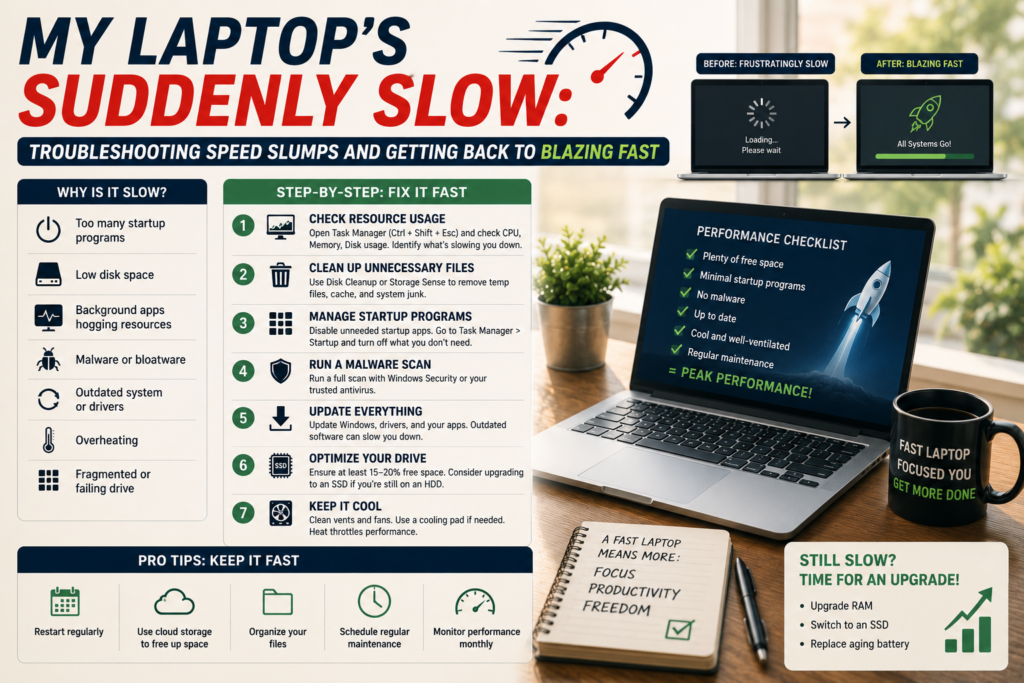
Before jumping into solutions, let’s understand *why* your laptop is suddenly slow. Knowing the root causes is critical for effective troubleshooting. Here are the usual suspects:
1. Full or Near-Full Storage
Think of your laptop’s hard drive or SSD as a filing cabinet. When it’s nearly full, finding and retrieving information takes longer. If your storage is constantly hovering near capacity, your laptop will struggle.
2. Resource-Hungry Programs
Some applications, like video editing software or complex games, hog a lot of processing power (CPU) and memory (RAM). Running multiple resource-intensive programs simultaneously can cause a severe slowdown.
3. Too Many Startup Programs
Every program set to launch when your laptop boots up takes a little bit of time and uses system resources. If you have dozens of apps starting automatically, the boot process and overall performance will suffer.
4. Malware and Viruses
Malicious software can run in the background, consuming resources and slowing down your system. Even if you think you’re safe, always be vigilant. A virus or malware infection is always a possibility.
5. Outdated Drivers
Drivers are the software that allows your hardware to communicate with your operating system. Outdated drivers, especially for your graphics card or network adapter, can cause performance problems.
6. Fragmentation (for Hard Disk Drives – HDDs)
HDDs store data in fragmented pieces across the disk. This fragmentation slows down data retrieval. SSDs, however, don’t suffer from this issue.
7. Hardware Limitations
If your laptop is old or has low-end specs (CPU, RAM), it might simply be struggling to keep up with modern software and tasks. While optimization helps, there is only so much you can do with limited resources.
Step-by-Step Solutions to Speed Up Your Laptop
Now, let’s get down to the nitty-gritty and fix those speed issues. I’ve broken down the solutions into easy-to-follow steps.
1. Free Up Disk Space
This is often the quickest fix. Here’s how:
- Uninstall unnecessary programs: Go to “Settings” -> “Apps” and remove programs you no longer use.
- Delete temporary files: Windows has a built-in “Disk Cleanup” tool. Search for it in the Start menu, select your main drive (usually C:), and check the boxes for temporary files, recycle bin, etc.
- Move large files: Transfer large media files (photos, videos, music) to an external hard drive or cloud storage.
- Empty the Recycle Bin: A forgotten step, but it frees up space immediately.
Expected Results: You should notice a performance improvement almost immediately, especially if your drive was nearly full.
Time to Fix: 15-30 minutes, depending on the amount of data you need to manage.
2. Close Resource-Intensive Programs
Identify the culprits by opening the Task Manager (Ctrl+Shift+Esc). Go to the “Processes” tab and see which programs are consuming the most CPU, memory, and disk usage. Close any unnecessary programs.
Expected Results: Noticeable improvement, especially while running multiple programs.
Time to Fix: 2-5 minutes.
3. Disable Startup Programs
In Task Manager (Startup tab), review the list of programs that launch automatically. Disable those you don’t need at startup. Be careful not to disable essential system processes.
Expected Results: Faster boot times and improved overall system responsiveness.
Time to Fix: 5-10 minutes.
4. Run a Malware Scan
Use your antivirus software to perform a full system scan to detect and remove any malware or viruses. Make sure your antivirus is up-to-date.
Expected Results: Improved performance if malware was the culprit.
Time to Fix: Varies, but usually 30 minutes to a few hours, depending on your system.
5. Update Drivers
Outdated drivers can cause major problems. Go to your device manufacturer’s website (e.g., Intel, NVIDIA, AMD) and download the latest drivers for your graphics card, network adapter, and other critical hardware. You can also use the Device Manager in
Windows (search for it in the Start menu) to update drivers. However, I prefer manually updating the most important ones. Do not blindly update all drivers.
Expected Results: Smoother graphics, better network performance, and potentially faster overall system performance.
Time to Fix: 30 minutes to an hour, depending on the number of drivers you need to update.
6. Defragment (HDDs Only)
If you have an HDD, defragmenting your hard drive can improve performance. Search for “Defragment and Optimize Drives” in the Start menu and follow the prompts. If you have an SSD, do *not* defragment, as it’s unnecessary and can shorten the drive’s lifespan.
Expected Results: Faster file access and overall system performance.
Time to Fix: Can take a few hours, depending on the size of your hard drive.
7. Consider a Hardware Upgrade (If Necessary)
If your laptop is still slow after these steps, it might be time for a hardware upgrade. Consider adding more RAM or replacing your HDD with an SSD. These upgrades can make a huge difference, particularly the SSD upgrade.
Replacing a traditional hard drive with a solid-state drive is often the single most significant upgrade you can make to an older laptop. It will dramatically improve boot times, application loading, and overall responsiveness.
Expected Results: Significant performance improvements, especially with an SSD upgrade.
Time to Fix: Varies, depending on the upgrade, but usually a couple of hours if you’re comfortable with hardware.
Common Mistakes to Avoid
Let’s prevent some common pitfalls that can make things worse:
- Ignoring Updates: Regularly update your operating system and software. Updates often include performance improvements and security patches.
- Downloading from Untrusted Sources: Be careful what you download. Malware is a major cause of slowdowns. Stick to reputable sources.
- Overlooking Background Processes: Many programs run in the background. Regularly check the Task Manager to see what’s using your resources.
- Skipping Regular Maintenance: Keep your system clean and organized. A little maintenance goes a long way.
- Assuming a Quick Fix Will Solve Everything: The reality is that there may not be a single fix that instantly restores speed. You may need to try several methods to optimize your laptop’s performance.
Myths and Misinformation
Let’s debunk some common myths:
- Myth: “CCleaner will fix everything.” While cleaning tools can help, they are not a magic bullet. They’re part of a bigger solution, not the solution itself.
- Myth: “More RAM always fixes everything.” While more RAM is helpful, it won’t fix a slow CPU or full hard drive. It’s about balance.
- Myth: “A factory reset is always the answer.” It’s a drastic step and should be a last resort.
Preventive Measures for a Speedy Laptop
Prevention is better than cure. Here’s how to keep your laptop running smoothly:
- Regular Maintenance: Clean up temporary files, uninstall unused programs, and defrag your HDD (if applicable) regularly.
- Be Careful with Downloads: Only download from trusted sources.
- Monitor Your Storage: Keep an eye on your storage space.
- Keep Software Updated: Install updates as soon as they are available.
- Use a Solid Antivirus: A good antivirus is essential for protection and performance.
- Be Mindful of What You Install: Avoid installing unnecessary toolbars, browser extensions, or other bloatware.
By following these tips, you’ll greatly reduce the likelihood of your laptop becoming a slow, frustrating burden.
Advanced Troubleshooting Tips
If you’ve tried the basic steps and your laptop is still slow, here are a few more advanced troubleshooting techniques:
- Run a System File Check: Open Command Prompt as an administrator and run the command `sfc /scannow`. This checks for and repairs corrupted system files.
- Check for Malware with Specialized Tools: Consider using a second opinion scanner like Malwarebytes to ensure a thorough check.
- Monitor System Resources: Use the Resource Monitor (search for it in the Start menu) to get a more in-depth look at what’s using your CPU, memory, and disk.
- Consider a Clean Install: As a last resort, a clean install of your operating system can resolve deep-seated software issues. Be sure to back up your important files first!
These advanced techniques can often unearth more obscure causes of laptop slowdowns. If you are not comfortable with these steps, consider seeking assistance from a computer technician.
FAQ: Your Questions Answered
Here are some frequently asked questions about slow laptops:
- Why is my laptop so slow all of a sudden? Typically, it’s due to a combination of factors: full storage, resource-hungry programs, malware, or outdated drivers.
- How can I make my old laptop faster? Free up disk space, close unnecessary programs, update drivers, and consider upgrading to an SSD.
- Should I defrag my SSD? No, do not defrag an SSD. It’s unnecessary and can shorten its lifespan.
- How long does it take to fix a slow laptop? It depends. Simple fixes like closing programs can be done in minutes. More complex issues may take a few hours.
- Does a factory reset make my laptop faster? It can, by removing unnecessary programs and files. However, it’s a drastic step and should be a last resort.
- What’s the best way to speed up my laptop? Addressing storage, resource usage, and background processes are critical. Consider an SSD upgrade if you have an older laptop.
- How often should I clean my laptop? Aim to clean up temporary files and uninstall unused programs monthly. Perform more in-depth maintenance (driver updates, malware scans) every few months.
- Are there any free tools to speed up my laptop? Yes, Windows has built-in tools like Disk Cleanup and Task Manager. There are also reputable free antivirus and malware removal tools.
If you are looking for more study tips, check out Conquering the Classroom: A Practical Guide to Mastering Effective Note-Taking in 2026.
Your slow laptop is no longer a sentence to frustration. By taking a methodical approach, you can diagnose the problem and take effective action. The key is to understand the root causes, and then to apply the appropriate solutions. Remember, a little bit of maintenance goes a long way. With these tips and tricks, you can restore your laptop’s speed and get back to being productive. For more helpful tech tips and guides, visit RelyOwn.