
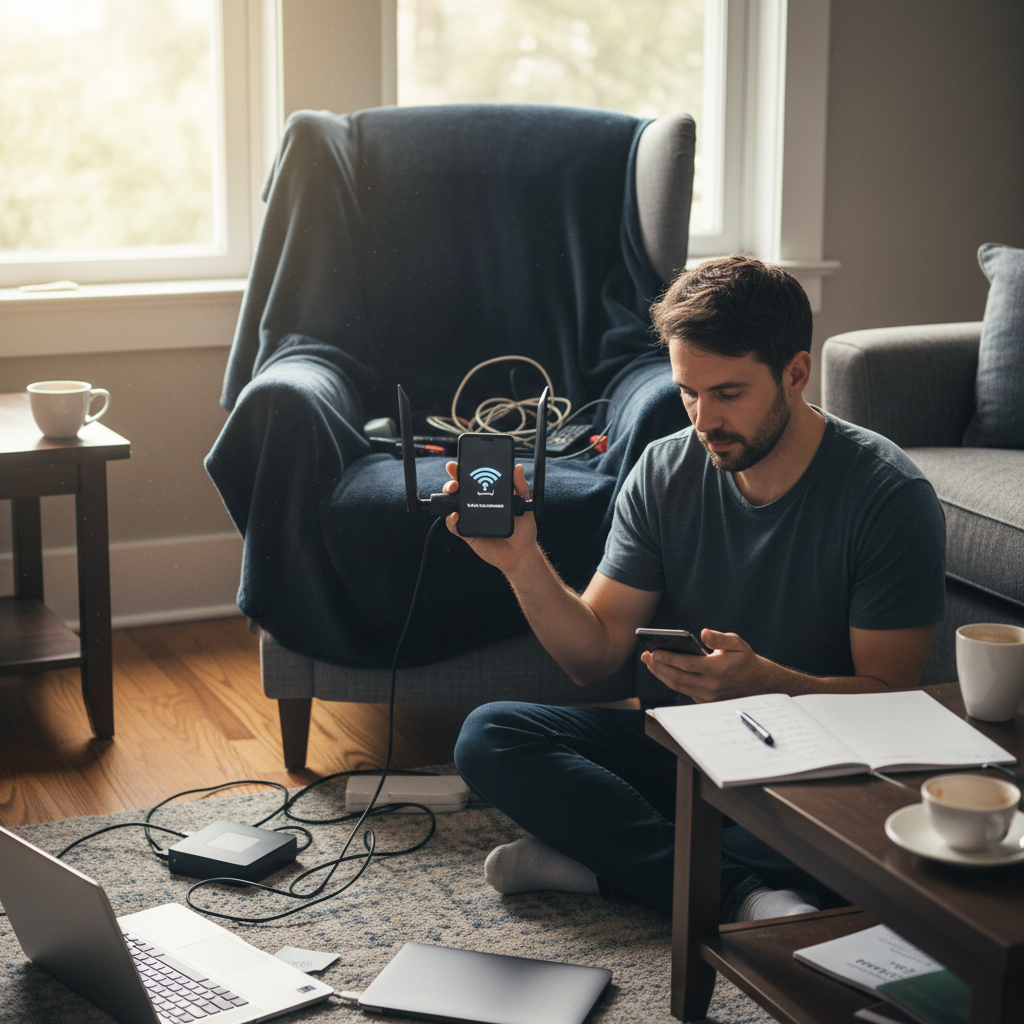
Ever feel like your Wi-Fi is deliberately conspiring against you? One minute you’re streaming in 4K, the next you’re staring at the dreaded buffering wheel of doom. It’s frustrating, right? And it seems to happen at the worst possible times –
during an important work call, while you’re trying to unwind with a movie, or when your kids are about to launch a crucial online game. But before you hurl your router out the window,
let’s get one thing straight: Wi-Fi problems are incredibly common, and most of them are fixable. I’ve spent over two decades helping people untangle their tech headaches, and trust me, I’ve seen it all. This isn’t just a list of generic tips; it’s a step-by-step guide to diagnosing and fixing your home Wi-Fi issues, based on real-world experience.
The Wi-Fi Nightmare: What’s Really Going On?
The core problem usually boils down to one of two things: either your Wi-Fi signal isn’t reaching where it needs to, or something is interfering with that signal. That “something” could be anything from physical obstructions to other devices hogging bandwidth. The complexity comes from the fact that it’s often a combination of factors, which can make pinpointing the exact cause seem like an impossible task. But don’t worry, we’ll break it down.
1. Weak Signal Strength: The Most Common Culprit
Imagine your router as a lighthouse, and your devices are ships trying to navigate the sea. If the lighthouse beam (your Wi-Fi signal) isn’t strong enough, the ships (your devices) won’t be able to “see” it properly. This is the most prevalent issue, and it’s usually caused by:
- Distance: The farther away you are from your router, the weaker the signal gets. Simple physics.
- Obstructions: Walls, especially thick ones made of concrete or brick, can significantly weaken the signal. Even things like mirrors, metal objects, and certain appliances can interfere.
- Router Placement: Where you put your router makes a huge difference. A router tucked away in a cabinet or basement is going to struggle to reach the rest of your home.
2. Interference: The Unseen Enemy
Your Wi-Fi signal operates on radio frequencies. Unfortunately, it’s not the only thing using those frequencies. This is where interference comes into play, leading to dropped connections, slow speeds, and general frustration. Common sources of interference include:
- Other Wi-Fi Networks: If you live in an apartment building or densely populated area, your router is likely competing with multiple other Wi-Fi networks. Think of it as a crowded party where everyone is trying to talk at once.
- Microwave Ovens: Yes, your microwave oven can be a Wi-Fi saboteur. They operate on the same 2.4 GHz frequency as many Wi-Fi routers.
- Bluetooth Devices: Bluetooth devices, cordless phones, and even some baby monitors can also cause interference.
- Electronic Devices: Other electronic devices, such as TVs and game consoles, can also contribute to the problem.
Step-by-Step Troubleshooting: Your Wi-Fi Rescue Plan
Alright, time to roll up your sleeves and get to work. Here’s a systematic approach to troubleshooting your home Wi-Fi issues. Don’t worry, it’s not as complicated as it sounds.
Step 1: The Quick Checks
Before you dive into more complex solutions, let’s start with the easy stuff. These quick checks can often resolve the problem immediately:
- Restart Everything: This is the classic “turn it off and on again” approach, and it works surprisingly often. Unplug your modem, router, and any other network devices. Wait 30 seconds, then plug them back in one at a time, starting with the modem. Wait for each device to fully boot up before moving to the next.
- Check the Lights: Are the lights on your modem and router behaving as they should? A solid “Internet” light on your modem and a steady “Wi-Fi” light on your router usually indicate that everything is working correctly. If the lights are flashing or off, there’s likely a problem.
- Test Other Devices: Does the problem affect all of your devices, or just one or two? If only one device is having issues, the problem is likely with that device, not your Wi-Fi. Try restarting the device or updating its software.
Step 2: Optimize Router Placement
This is often the single most effective thing you can do to improve your Wi-Fi signal. Here’s how to do it right:
- Central Location: Place your router in a central location in your home, where it can reach as many devices as possible.
- Elevate It: Get your router up off the floor and away from obstructions. Put it on a shelf, a desk, or mount it on a wall.
- Avoid Obstacles: Keep your router away from walls, metal objects, mirrors, and appliances like microwaves and cordless phones.
- Test, Test, Test: After moving your router, use a Wi-Fi analyzer app (more on that later) to check the signal strength in different areas of your home.
Step 3: Analyze Your Wi-Fi Environment
To understand what’s happening with your Wi-Fi, you need to “see” it. This is where Wi-Fi analyzer apps come in handy. There are many free and paid apps available for both smartphones and computers. These apps will show you:
- Signal Strength: How strong your Wi-Fi signal is in different areas of your home.
- Channel Overlap: Which Wi-Fi channels are being used by other networks in your area.
- Interference Sources: Potential sources of interference, such as other Wi-Fi networks and Bluetooth devices.
Pro Tip: If your router is on the same channel as several other routers, it can cause interference. Most routers allow you to change the Wi-Fi channel in the settings. Experiment with different channels to find the one that performs best in your environment. Channels 1, 6, and 11 are generally recommended for 2.4 GHz networks because they don’t overlap.
Step 4: Upgrade Your Hardware (If Needed)
Sometimes, the problem isn’t your placement or the environment; it’s the hardware itself. If you have an older router, it may not be able to handle the demands of modern devices and internet speeds. Here’s what to consider:
- Router Standards: Look for a router that supports the latest Wi-Fi standards (Wi-Fi 6 or Wi-Fi 6E). These standards offer faster speeds, better range, and improved performance in crowded environments.
- Mesh Wi-Fi Systems: If you have a large home or one with thick walls, a mesh Wi-Fi system might be the best solution. Mesh systems use multiple access points to create a seamless Wi-Fi network throughout your home.
- Internet Speed: Make sure your router can handle the speed of your internet plan. If you have a gigabit internet connection, you’ll need a router that can support gigabit speeds.
Step 5: Advanced Troubleshooting
If the above steps don’t solve the problem, you can try some more advanced techniques. Be aware that these techniques require a bit more technical knowledge:
- Check Your Internet Speed: Use a speed test website (like Speedtest.net) to measure your internet speed. If your speeds are significantly lower than what you’re paying for, contact your internet service provider (ISP). There may be an issue with your connection.
- Update Router Firmware: Router manufacturers regularly release firmware updates to fix bugs, improve performance, and enhance security. Check your router’s settings to see if there are any available updates.
- Change DNS Servers: Your Domain Name System (DNS) servers translate website names into IP addresses. Sometimes, using a different DNS server can improve your internet speed and stability. Google’s public DNS servers (8.8.8.8 and 8.8.4.4) are a popular choice. You can change your DNS servers in your router’s settings or on individual devices.
- Factory Reset: As a last resort, you can reset your router to its factory settings. This will erase all of your custom settings, so make sure you have the necessary information (like your internet login credentials) before you do this. You’ll usually find a small reset button on the back of your router. Use a paperclip or other small object to press and hold the button for about 30 seconds.
Common Mistakes to Avoid
When troubleshooting Wi-Fi issues, it’s easy to fall into some common traps. Avoiding these mistakes can save you a lot of time and frustration:
- Assuming the Problem is Always the Router: While the router is often the culprit, the problem could be with your internet service, your devices, or even your home’s wiring.
- Ignoring Router Placement: As mentioned earlier, router placement is critical. Don’t underestimate its impact.
- Not Updating Firmware: Outdated firmware can cause performance issues and security vulnerabilities.
- Using the Default Router Settings: Most routers come with default settings that aren’t optimized for your specific environment. Take the time to customize your settings.
- Giving Up Too Easily: Troubleshooting Wi-Fi can be a process of trial and error. Don’t get discouraged if the first few solutions don’t work. Keep trying!
Expected Results and Time to Fix
The time it takes to fix your Wi-Fi problems can vary depending on the complexity of the issue. Simple fixes, such as restarting your router or repositioning it, can often be done in a matter of minutes. More complex issues, like interference or outdated hardware, may require more time and effort. In most cases, you should see an improvement in your Wi-Fi performance within an hour or two. If you’re still having trouble after trying these steps, consider contacting your ISP or a qualified IT professional for help.
Preventative Measures: Keeping Your Wi-Fi Strong
Once you’ve fixed your Wi-Fi problems, you’ll want to take steps to prevent them from happening again. Here are some preventative measures to keep your Wi-Fi strong and reliable:
- Regular Maintenance: Restart your router and modem at least once a month. This can help clear out temporary files and improve performance.
- Keep Firmware Updated: Enable automatic firmware updates on your router to ensure you always have the latest security patches and performance improvements.
- Manage Connected Devices: Be mindful of how many devices are connected to your Wi-Fi network. The more devices you have, the more strain you’ll put on your network. Consider upgrading to a router that can handle more devices if needed.
- Secure Your Network: Use a strong password for your Wi-Fi network to prevent unauthorized access. This will help protect your data and prevent other people from using your bandwidth.
- Monitor Your Network: Use a network monitoring tool to track your Wi-Fi performance over time. This can help you identify potential problems before they become major issues.
By taking these preventative measures, you can minimize the risk of future Wi-Fi problems and enjoy a fast, reliable internet connection.
If you find that your Wi-Fi issues persist, you might need to consult an expert. You can always try looking at other articles for more tips, such as troubleshooting problems with your printer; you can find information on that here.
Frequently Asked Questions
Here are some frequently asked questions about Wi-Fi problems, answered in a clear and concise way:
- Why is my Wi-Fi so slow? Slow Wi-Fi can be caused by a variety of factors, including distance from the router, interference, too many connected devices, or an outdated router.
- Why does my Wi-Fi keep dropping? Wi-Fi drops can be caused by interference, a weak signal, or a problem with your internet service provider.
- How can I improve my Wi-Fi signal strength? Improve your Wi-Fi signal strength by repositioning your router, minimizing obstructions, and upgrading your hardware.
- What causes Wi-Fi interference? Wi-Fi interference can be caused by other Wi-Fi networks, microwave ovens, Bluetooth devices, and other electronic devices.
- How do I change my Wi-Fi channel? You can change your Wi-Fi channel in your router’s settings. Use a Wi-Fi analyzer app to find the best channel for your environment.
- Should I upgrade my router? You should upgrade your router if it’s outdated, doesn’t support the latest Wi-Fi standards, or can’t handle the number of devices you have connected.
- What is a mesh Wi-Fi system? A mesh Wi-Fi system uses multiple access points to create a seamless Wi-Fi network throughout your home, providing better coverage than a single router.
- What do I do if I think my internet service provider is the problem? If you suspect your ISP is the problem, contact them to troubleshoot your connection. They may be able to resolve the issue or offer suggestions on what to do.