
It’s the digital equivalent of a power outage: Wi-Fi that decides to take a vacation at the worst possible moment. One minute you’re streaming, video conferencing, or just scrolling, and the next, *poof* – the dreaded “no internet” message appears. This is a problem many face daily. This isn’t just an inconvenience; it can kill productivity, disrupt entertainment, and generally make your digital life a pain.
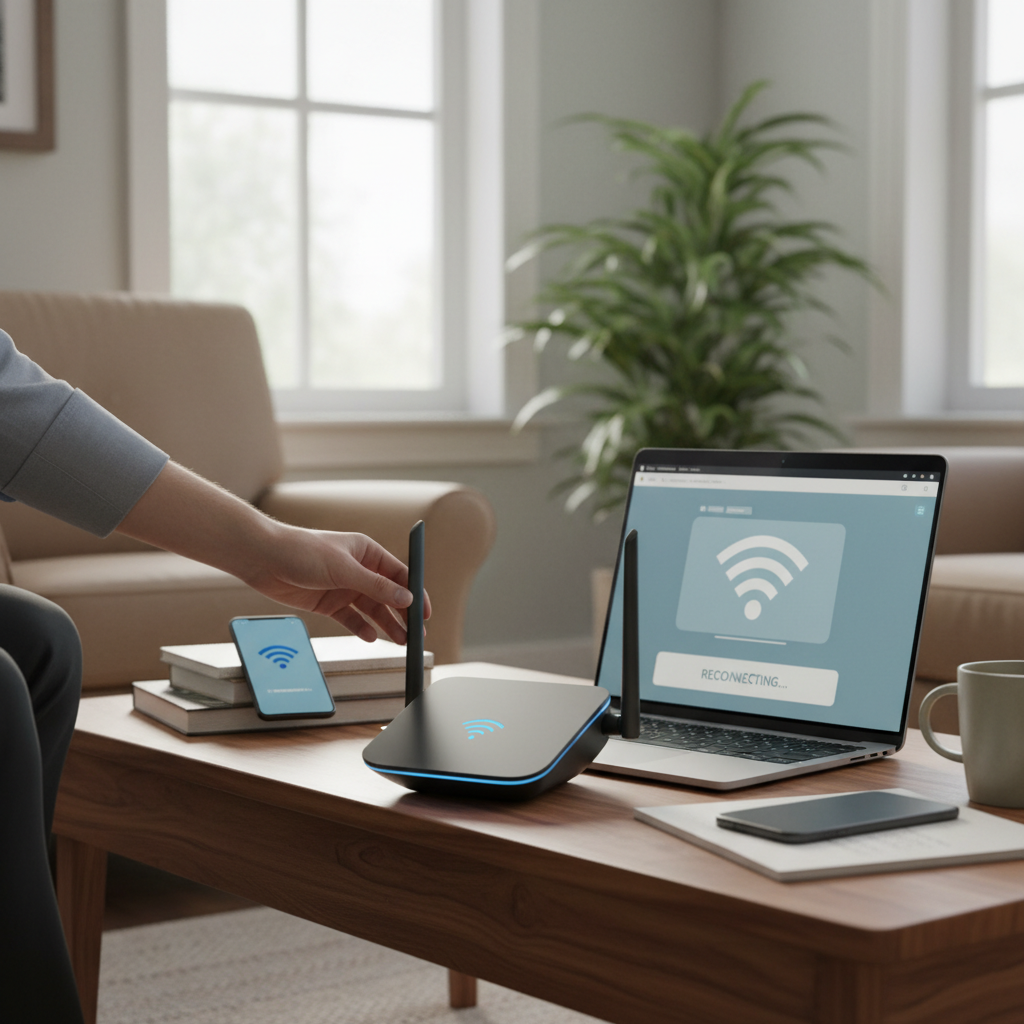 But don’t panic. Before you start smashing your router (we’ve all been tempted), let’s dive into the common reasons why your Wi-Fi keeps crashing, and more importantly, how to fix it. This guide is tailored for the issues of 2026, where the demands on your home network are higher than ever, and where quick fixes are often not enough.
Understanding the Root Cause: Why Does My Wi-Fi Keep Disconnecting?
The first step in any troubleshooting process is understanding the “why”. Several factors contribute to Wi-Fi instability. Knowing these will help you identify the right solution.
* **Interference:** Your Wi-Fi signal travels over radio waves, and those waves can get crowded. Devices like microwaves, cordless phones, and even Bluetooth devices can interfere with your Wi-Fi signal. This is a major cause of dropped connections.
* **Router Placement:** Where you put your router matters. Placing it in a corner, inside a cabinet, or near metal objects can severely limit its range and effectiveness. A central, elevated position is best.
* **Distance:** The further you are from your router, the weaker the signal. Walls, floors, and other obstacles further degrade the signal.
* **Outdated Firmware:** Routers, like any piece of tech, need updates. Outdated firmware can cause instability and security vulnerabilities.
* **Overloaded Router:** Your router has a limit to how many devices it can handle simultaneously. If you have a house full of smart devices, gaming consoles, and streaming devices, your router could be getting overwhelmed.
* **ISP Issues:** Sometimes, the problem isn’t your equipment but your internet service provider (ISP). Outages or problems on their end can cause your Wi-Fi to crash.
* **Security Issues:** If your network isn’t secure, unauthorized users could be using your bandwidth, slowing down your connection or causing disconnects.
Step-by-Step Solutions: How to Fix Wi-Fi Problems
Now for the solutions. Don’t worry, you don’t need to be a tech expert. Most of these fixes are straightforward.
1. The Quick Reboot: A Classic for a Reason
This is the first thing to try, and often it works.
* Unplug your modem and your router.
* Wait at least 30 seconds.
* Plug in the modem first, and wait for it to fully power on and connect to the internet (usually indicated by a solid “internet” light).
* Then, plug in the router and wait a minute or two.
* Test your Wi-Fi on your devices.
**Expected Result:** Often, a simple reboot clears temporary glitches.
**Time to Fix:** 5-10 minutes.
2. Check the Physical Connections
This is where most people get stuck. Make sure the cables connecting your modem and router are securely plugged in. Check the Ethernet cable connecting your computer directly to the router to see if your internet is working via a wired connection. This helps you narrow down whether the issue is with your Wi-Fi or with your internet service.
**Expected Result:** This can identify a loose cable as the problem.
**Time to Fix:** 5 minutes.
3. Optimize Your Router’s Location
The real problem usually lies here.
* **Central Location:** Place your router in a central location in your home, as high up as possible. A shelf is better than the floor.
* **Away from Obstacles:** Keep it away from walls, metal objects, appliances (microwaves!), and other electronics.
* **Antenna Positioning:** If your router has external antennas, position them vertically for the best coverage.
**Expected Result:** Better signal strength and wider coverage.
**Time to Fix:** 15-30 minutes.
4. Update Your Router’s Firmware
Fixing this becomes easier when you have the latest version. Router manufacturers regularly release firmware updates to improve performance, add features, and fix security vulnerabilities.
* Access your router’s settings (usually through a web browser by typing its IP address).
* Look for a “Firmware” or “Update” section.
* Follow the instructions to update the firmware.
**Important:** Do NOT interrupt the update process.
**Expected Result:** Improved stability and security.
**Time to Fix:** 10-20 minutes.
5. Change Wi-Fi Channels
Wi-Fi routers operate on different channels. If your neighbors’ routers are using the same channel, it can cause interference.
* Access your router’s settings.
* Look for a “Wireless” or “Wi-Fi” section.
* Find the “Channel” setting.
* Try different channels (1, 6, and 11 are often recommended for the 2.4 GHz band). You may need to experiment.
**Expected Result:** Reduced interference and a more stable connection.
**Time to Fix:** 10-15 minutes (plus testing time).
6. Use the 5 GHz Band (If Possible)
Most modern routers offer both 2.4 GHz and 5 GHz bands. The 5 GHz band offers faster speeds and is less prone to interference but has a shorter range.
* Connect your devices to the 5 GHz network if they support it, especially if you’re close to the router.
**Expected Result:** Faster speeds for devices near the router.
**Time to Fix:** 5 minutes.
7. Secure Your Network
If you’re not using a password, or using a weak one, your network is vulnerable.
* **Strong Password:** Use a strong password with at least 12 characters, including upper and lowercase letters, numbers, and symbols.
* **WPA3 Encryption:** Enable WPA3 encryption in your router’s settings for the best security.
**Expected Result:** Prevents unauthorized access and potential bandwidth theft.
**Time to Fix:** 10 minutes.
8. Limit Connected Devices
If your router is overloaded, consider reducing the number of devices connected simultaneously.
* Disconnect devices you’re not actively using.
* If you have many devices, consider upgrading to a router that can handle more connections.
**Expected Result:** Improved performance for essential devices.
**Time to Fix:** Ongoing.
9. Consider Wi-Fi Extenders or Mesh Networks
For larger homes, a single router might not provide adequate coverage.
* **Wi-Fi Extenders:** These amplify your existing Wi-Fi signal.
* **Mesh Networks:** A mesh network uses multiple access points to create a seamless Wi-Fi network throughout your home.
**Expected Result:** Extended Wi-Fi coverage.
**Time to Fix:** Varies depending on the solution.
10. Check with Your ISP
If you’ve tried all the above and your Wi-Fi still keeps crashing, the problem might be with your internet service.
* Contact your ISP to report the problem and check for outages or issues on their end.
**Expected Result:** Identifying if the problem is with your service.
**Time to Fix:** Varies, depending on the ISP.
Common Mistakes to Avoid
* **Ignoring the Obvious:** Don’t skip the simple steps, like rebooting your router.
* **Putting the Router in a Bad Spot:** A router in a closet is a recipe for disaster.
* **Using a Weak Password:** This is an open invitation for intruders.
* **Assuming All Devices are Equal:** Some devices may have outdated software.
Myth Busting: Quick Fixes That Don’t Always Work
* **”Hiding” Your Network:** This provides minimal security.
* **Restarting Your Computer:** While this can help, it’s rarely the root cause.
* **”Super Boosting” Your Wi-Fi Signal with Third-Party Apps:** These rarely work and can cause more problems.
What to Expect and Timeline
Most Wi-Fi problems can be solved quickly. Here’s a rough idea:
* **Rebooting:** 5-10 minutes.
* **Checking Connections:** 5 minutes.
* **Optimizing Router Placement:** 15-30 minutes.
* **Updating Firmware:** 10-20 minutes.
* **Changing Channels/Using 5 GHz:** 10-15 minutes (plus testing time).
* **Securing Your Network:** 10 minutes.
If you have to contact your ISP, that could take longer, depending on their response time.
Prevention is Key: How to Avoid Future Wi-Fi Crashes
* **Regular Reboot:** Reboot your router at least once a month.
* **Keep Firmware Updated:** Enable automatic updates if possible, or manually check for updates regularly.
* **Maintain Good Router Placement:** Re-evaluate your router’s location periodically.
* **Use Strong Security:** Regularly change your Wi-Fi password.
* **Monitor Your Network:** Keep an eye on your network’s performance.
By taking these steps, you can drastically reduce the chances of your Wi-Fi crashing. If you’re looking for additional resources, consider checking out RelyOwn for more tips on maximizing your home network and optimizing your digital life. Additionally, if you’re thinking about a career change, you may find Your Complete Guide to Launching a Thriving Freelance Career in 2026 helpful for launching a remote career that requires a strong and stable internet connection.
Frequently Asked Questions (FAQ)
Here are some answers to common questions about Wi-Fi problems:
**Q: My Wi-Fi works, but the internet is slow. What should I do?**
A: Start by testing your internet speed with a wired connection to your router. If that’s fast, the problem is likely with your Wi-Fi. Try the solutions outlined in this guide, such as optimizing your router’s location, changing channels, or upgrading your router.
**Q: How often should I reboot my router?**
A: At least once a month, or more frequently if you’re experiencing problems.
**Q: Is it safe to leave my router on all the time?**
A: Yes, it’s generally safe. However, a reboot can help clear temporary glitches.
**Q: My Wi-Fi keeps disconnecting on only one device. What’s wrong?**
A: The problem may be with the device itself. Try restarting the device, updating its drivers, and forgetting and rejoining the network.
**Q: What’s the best Wi-Fi encryption?**
A: WPA3 is the most secure, but WPA2 is still a good option. Make sure to use a strong password.
**Q: My internet is down completely. What do I do?**
A: First, reboot your modem and router. If that doesn’t work, contact your ISP to check for outages. Also check the lights on your router to see what is the issue.
**Q: Do Wi-Fi extenders really work?**
A: They can, but they often reduce speeds. Mesh networks are generally a better solution for larger homes.