
It’s 2026, and you’ve embraced the smart home revolution. You’ve got smart lights, a smart thermostat, a smart security system, and maybe even a smart fridge that can tell you when you’re out of milk.
The dream? Effortless living, controlled from your phone. The reality? More often than not, a frustrating jumble of devices that don’t talk to each other, drop connections, and leave you feeling like you’re living in a poorly-scripted sci-fi movie.
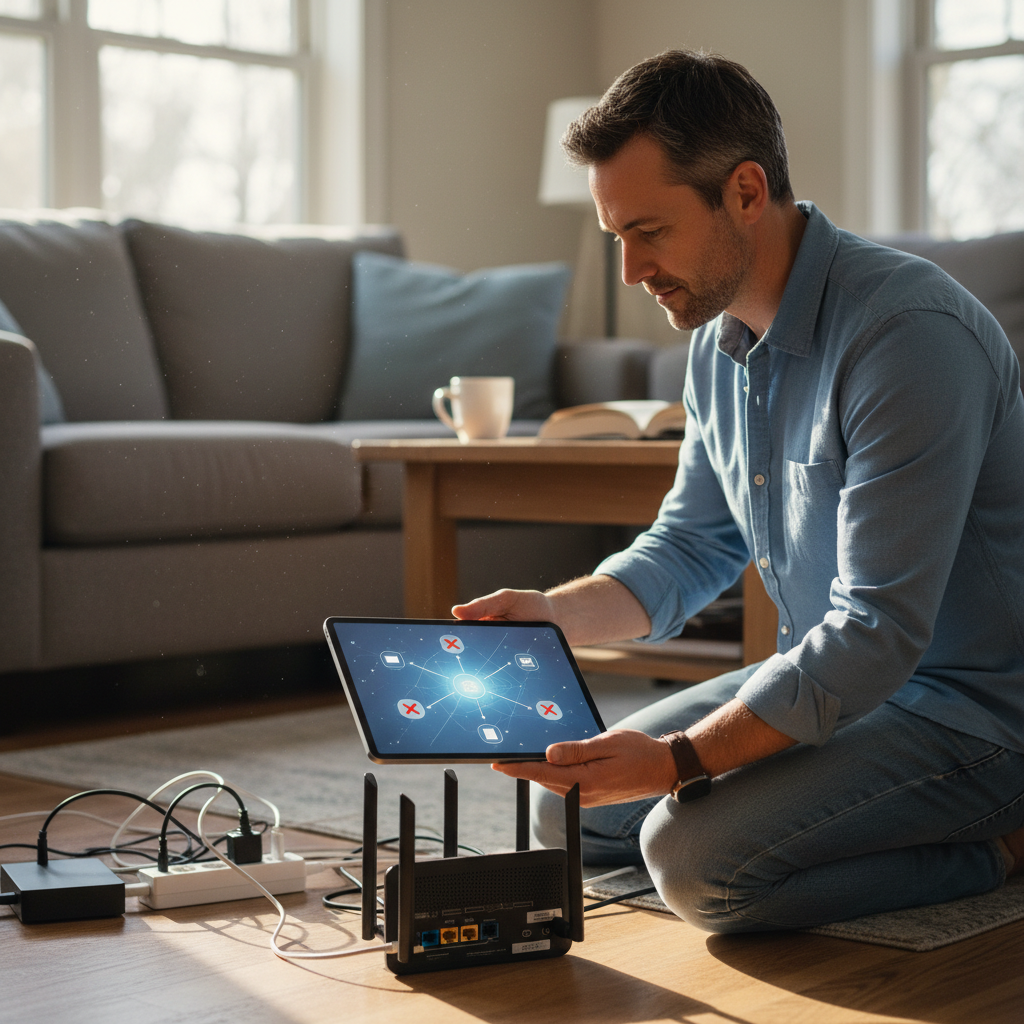 Sound familiar? You’re not alone. The promise of seamless smart home integration is often overshadowed by the harsh reality of Wi-Fi woes, device incompatibility, and a general lack of reliability. I’ve been there, wrestled with the blinking lights and the cryptic error messages, and I’m here to help you reclaim your sanity (and your smart home). This isn’t about replacing your devices; it’s about making them *work*.
The Root of the Problem: Why Your Smart Home is Falling Apart
Before we dive into solutions, let’s understand why your smart home devices might be misbehaving. The real problem usually lies here: Your home network is the central nervous system of your smart home, and it’s easily overloaded. Think of it like this: your router is the traffic controller, and every smart device is a vehicle vying for its attention. If there are too many vehicles, or if the road (your Wi-Fi) is congested, everything slows down or crashes.
Here’s a breakdown of the usual suspects:
- Weak Wi-Fi Signal: Distance, walls, and interference from other electronics (microwaves, cordless phones) can all weaken your Wi-Fi signal. If your devices can’t “hear” the router, they can’t function.
- Router Overload: Modern routers have a limit to the number of devices they can handle simultaneously. If you have a lot of smart devices, plus smartphones, tablets, and computers, your router could be working overtime.
- Interference: Wi-Fi signals operate on radio frequencies, and these can get congested. Other devices in your home or your neighbors’ homes can cause interference, leading to dropped connections and slow speeds.
- Device Incompatibility: Not all smart home devices are created equal. Some use different communication protocols (Wi-Fi, Bluetooth, Zigbee, Z-Wave), and sometimes they just don’t play well together.
- Outdated Firmware: Just like your phone gets software updates, so do your smart home devices and your router. Outdated firmware can lead to bugs, security vulnerabilities, and compatibility issues.
- IP Address Conflicts: Every device on your network needs a unique IP address to communicate. If two devices somehow end up with the same address, chaos ensues.
Step-by-Step Troubleshooting: Reclaiming Your Smart Home
Fixing this becomes easier when you approach it systematically. Here’s a step-by-step troubleshooting guide to get your smart home back on track:
Step 1: The Basic Reboot – Your First Line of Defense
Before you start pulling your hair out, try the simplest fix: reboot everything. This is where most people get stuck, thinking it’s too simple to work. But trust me, it often does!
What to reboot:
- Your router: Unplug it from the power outlet for at least 30 seconds. Plug it back in and wait for it to fully restart (usually a couple of minutes).
- Your smart home devices: Unplug each device, wait 15-30 seconds, and plug it back in. This includes smart lights, plugs, thermostats, etc.
Why it works: Rebooting clears temporary glitches, refreshes network connections, and allows devices to re-establish a stable connection with the router.
Step 2: Check Your Wi-Fi Signal Strength
A weak Wi-Fi signal is the most common culprit. Use your smartphone or tablet to check the signal strength in the areas where your smart home devices are located. Look for a solid, strong signal. If the signal is weak, you’ll need to improve your Wi-Fi coverage.
Here’s how to boost your Wi-Fi signal:
- Relocate your router: Place your router in a central location, away from walls, metal objects, and other electronics that can cause interference.
- Use a Wi-Fi extender: A Wi-Fi extender (also called a range extender) amplifies your Wi-Fi signal, expanding its reach. These are easy to set up and can be a lifesaver in larger homes.
- Upgrade your router: If your router is old, it might not be able to handle the demands of a smart home. Consider upgrading to a newer router with the latest Wi-Fi standards (Wi-Fi 6 or Wi-Fi 6E) for better performance and coverage.
- Consider a mesh Wi-Fi system: Mesh Wi-Fi systems use multiple access points to create a seamless Wi-Fi network throughout your home. They are great for eliminating dead spots and providing consistent coverage.
Step 3: Manage Your Router’s Device Capacity
If you have a lot of smart devices, your router might be struggling to keep up. Most routers have a limit to the number of devices they can handle.
Here’s how to manage your router’s device capacity:
- Prioritize devices: Some routers allow you to prioritize certain devices, giving them more bandwidth. Prioritize your most important smart home devices (like your security system or thermostat).
- Limit the number of connected devices: Consider limiting the number of devices connected to your Wi-Fi network. Unplug or turn off devices that you don’t use regularly.
- Upgrade your router (again): If you’re still running into issues, upgrading to a router that can handle more devices might be necessary. Check your router’s specifications to see how many devices it supports.
Step 4: Reduce Wi-Fi Interference
Wi-Fi interference can wreak havoc on your smart home devices.
Here’s how to reduce Wi-Fi interference:
- Change your Wi-Fi channel: Your router broadcasts on a specific Wi-Fi channel. Overlapping channels can cause interference. Log into your router’s settings and try switching to a different channel. Most routers have an “auto” setting that will automatically select the least congested channel.
- Move your router: Reposition your router away from other electronics (microwaves, cordless phones, Bluetooth devices) that operate on the same 2.4 GHz frequency as many smart home devices.
- Use the 5 GHz band (if possible): Many newer routers support both 2.4 GHz and 5 GHz bands. The 5 GHz band is generally less congested and offers faster speeds, but has a shorter range. Connect your devices that are close to the router to the 5 GHz band, and use the 2.4 GHz band for devices that are further away.
Step 5: Check for Device Compatibility and Firmware Updates
Incompatibility and outdated firmware are often the culprits behind device connection issues. This is where many people start to get frustrated, but it’s important to remember that manufacturers regularly release updates to fix bugs and improve compatibility.
Here’s how to troubleshoot compatibility and firmware:
- Check device compatibility: Make sure your smart home devices are compatible with each other and with your smart home hub (if you’re using one). The manufacturer’s website or the device’s documentation should provide this information.
- Update device firmware: Most smart home devices can be updated over the air (OTA) through their companion app or through your smart home hub. Check the app or hub settings for firmware updates and install them.
- Update your router’s firmware: Keeping your router’s firmware up to date is crucial for performance and security. Check the manufacturer’s website for firmware updates and install them.
Step 6: Address IP Address Conflicts (Advanced)
This is a less common issue, but it can be a real headache. As mentioned earlier, every device on your network needs a unique IP address to communicate. If two devices end up with the same address, one or both will experience connectivity problems.
Here’s how to troubleshoot IP address conflicts:
- Check your router’s DHCP settings: Your router’s DHCP (Dynamic Host Configuration Protocol) server automatically assigns IP addresses to devices on your network. Make sure the DHCP range is large enough to accommodate all your devices.
- Assign static IP addresses: For critical smart home devices (like your hub or security system), you can assign a static IP address. This ensures that the device always has the same IP address, preventing conflicts. You’ll need to log into your router’s settings to do this.
- Reboot your devices: After making any changes to your IP address settings, reboot your smart home devices and your router.
Myth Busting: Common Misconceptions About Smart Home Troubleshooting
There’s a lot of misinformation floating around about smart home troubleshooting. Let’s debunk some common myths:
- Myth: “My Wi-Fi is fast, so my smart home devices should work perfectly.”
- Reality: High internet speed doesn’t guarantee a stable smart home. The issue is often with the Wi-Fi signal strength and the router’s ability to handle multiple devices, not your internet speed.
- Myth: “Buying more expensive devices automatically solves the problem.”
- Reality: Price isn’t always an indicator of reliability. Focus on compatibility, proper setup, and troubleshooting techniques.
- Myth: “Smart home hubs are always necessary.”
- Reality: While hubs can simplify things, many devices work directly with your Wi-Fi network and a smartphone app. Hubs are helpful for advanced automation and consolidating control, but are not always mandatory.
Expected Results and Timeline
The time it takes to fix your smart home problems varies depending on the complexity of the issue. Most of these solutions can be implemented within minutes to an hour.
- Rebooting your devices: A few minutes.
- Checking Wi-Fi signal strength and repositioning your router: 15-30 minutes.
- Updating firmware: Can take up to 30 minutes, depending on the number of devices.
- Troubleshooting IP address conflicts: Potentially a little longer.
Once you implement these fixes, you should see:
- More stable connections for your smart home devices.
- Faster response times.
- Fewer dropped connections.
- Reduced frustration!
Preventative Measures: Keeping Your Smart Home Running Smoothly
Once you get your smart home working properly, you want to keep it that way. Here are some preventative measures to minimize future problems:
- Regularly check for firmware updates: Set a reminder to check for firmware updates for your router and smart home devices at least once a month.
- Monitor your Wi-Fi network: Use a Wi-Fi analyzer app on your smartphone or tablet to monitor your Wi-Fi signal strength and identify potential interference.
- Keep a record of your IP addresses: Note down the IP addresses of your critical smart home devices. This will help you troubleshoot connection issues more quickly.
- Organize your devices: Consider labeling your smart home devices or creating a simple diagram of your network.
By implementing these preventative measures, you can create a more resilient and reliable smart home experience.
If you’re looking for more ways to streamline your digital life, you might find some useful tips in this related article on organizing your online life.
FAQ: Your Smart Home Troubleshooting Questions Answered
Here are some frequently asked questions (and answers) to help you even further:
1. My smart light bulbs keep going offline. What’s wrong?
Weak Wi-Fi signal, device incompatibility, or outdated firmware are common causes. Check your Wi-Fi signal strength near the bulbs, update the firmware, and ensure compatibility with your network and any hub you might be using.
2. Why is my smart thermostat not responding?
Check the batteries, ensure it’s connected to Wi-Fi, and check for any app or hub connection problems. Reboot the thermostat and your router as a starting point.
3. My smart lock isn’t locking/unlocking. What should I do?
Check the batteries, and the lock’s connection to your hub or Wi-Fi. Ensure your hub isn’t offline. Sometimes, a simple reset of the lock can fix it. Check the manufacturer’s troubleshooting guidelines.
4. How do I improve my Wi-Fi range for my smart home devices?
Use a Wi-Fi extender, reposition your router in a more central location, or upgrade to a newer router with better range and stronger signal capabilities.
5. How many smart devices can my router handle?
This depends on your router’s specifications. Check the documentation or the manufacturer’s website for the maximum number of supported devices. Consider upgrading your router if needed.
6. What are the best ways to secure my smart home network?
Use strong passwords for your Wi-Fi network and smart home devices. Enable two-factor authentication where available. Regularly update your router’s and devices’ firmware. Consider creating a separate guest network for your smart devices.
7. I keep getting “IP address conflict” errors. How do I fix this?
Log into your router’s settings and check the DHCP settings. Make sure the DHCP range is large enough to accommodate all your devices. Consider assigning static IP addresses to critical devices to prevent conflicts.
8. What if nothing works? I’ve tried everything!
If you’ve exhausted all troubleshooting steps, consider contacting the manufacturer of your devices or a professional IT technician. Sometimes, there are deeper network issues or hardware problems that require expert assistance.
By following these steps, you can troubleshoot and fix most common smart home connectivity and performance issues. Don’t let a few glitches ruin the smart home experience. With a little patience and persistence, you can have a smart home that truly works for you. Remember, a reliable RelyOwn home network is the foundation for a seamless smart living experience.